
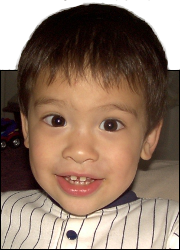
 This is Alpha, the first-born, when he was 2YO.
 This is Beta, the second-born, when he was about 2YO.
 This is Gamma, the third-born, when he was about 18MO.
SBS Blogroll
This widget organizes your blogroll for you, displaying the entries in chronological order. That way, you can see how long ago someone last update his blog, and you can tell that you shouldn’t visit it because it has been a month since he last posted. Or, conversely, you can see that your sister updated her blog today so you know you should go read it.
If you don’t have a cache plug-in for your blog, you may notice that your blog takes longer to load with SBS Blogroll installed. Why does the blogroll slow down your blog? It has to go get information about the other blogs from those blogs – it’s like the browser has to load several blogs now before it can display your blog. A cache can speed up the loading, with the drawback that it won’t always have current information.
Steps to install this widget:
- Download the plugin zip file or the plugin PHP file or go to the official WordPress site
- Upload `sbs-blogroll.php` to your Plugins directory (usually `/wp-content/plugins/`)
- Login to your WordPress blog
- Find the `Plugins` menu option at your dashboard
- Use it to activate the SBS Blogroll plugin
- Find the `Appearance` menu option at your dashboard
- Select it, then select `Widgets`
- Drag SBS Blogroll over to your sidebar configuration and set it up (see below).
- Enter the CSS to make the blogroll look good (see below below).
Steps to setup your blogroll with feeds:
- Find the RSS or Atom feed link for an interesting blog or website. Copy the link to the clipboard.For example, look at the bottom of this blog. You’ll see some text that says “Entries (RSS)”. If you right-click on that and select “Copy Link Location” or “Copy shortcut”, it will get put in your invisible clipboard.
- Paste that link into the widget configuration. It will look something like “http://www.someblogsite.com/feed”
- Repeat the previous two steps for as many other blogs/websites as you want on your blogroll
- Remember, you probably want Entries RSS, not Comments RSS. Most Blogger blogs have it as “Subscribe to: Posts (Atom)” at the bottom of the main page (not individual posts).
- The feed link may be at the bottom of the page or in the sidebar or in the header. It may also have this icon
 .
.
CSS Code
.sbsblogroll-feeditem {
    margin-bottom: 0;
}
.sbsblogroll-feeditem img {
    float: left;
    height: 16px;
    width: 16px;
    margin-top: 0.7em;
}
.sbsblogroll-feeditem a {
    margin-left: 4px;
}

.sbsblogroll-feedname {
    font-weight: bold;
    text-decoration: none;
    margin-left: 0px;
    margin-top: 15px;
}
.sbsblogroll-feedname a {
    color: #555;
    text-decoration: none;
}
.sbsblogroll-feedname a:hover {
    color: #000;
    text-decoration: underline;
}

.sbsblogroll-date {
    text-align: right;
    width: 98%;
}





December 25th, 2009 at 5:22 pm
I’m using this plugin at http://marinerosbouzas.com and is working nice, i love it, but i found a small bug in the way of how is checked if favicon must be shown. I upload a patch and the full file on my blog. I hope that you can fix de bug in the next release.
December 27th, 2009 at 12:55 am
Thanks for the bug-fix help. I have updated the plugin at WordPress, so new downloads should be correct.
December 31st, 2009 at 4:03 am
Hi!
First of all, thank you so much for doing this. It’s exactly what I’ve been looking for a long time.
Unfortunatedly, I get this error message when I try to use it: Fatal error: Allowed memory size of 33554432 bytes exhausted (tried to allocate 272909 bytes) in /home6/lamirad2/public_html/wp-includes/wp-db.php on line 529
Could you give me a hand with this?
Thank you and have a happy New Year!
January 3rd, 2010 at 6:11 pm
Ok, I solved it on my own :)
But now, I’d like to know if it’s possible to have a “target_blank” added to the links, for it feels like losing traffic not to.
I hope you’re still having a nice 2010.
January 4th, 2010 at 4:37 am
@Pablo I’m also getting the same error, how did you fix it?
January 4th, 2010 at 10:16 pm
Sorry for the delay in replying. My computer stopped working on New Year’s Eve and I just repaired it today.
What was the fix? I will put that, along with an option to have the links open in a new window, in the next release.
Thanks!
January 5th, 2010 at 1:16 am
Oh, that’d be great!
To solve the error, I modified the wp-settings archive increasing the allocated memory in line 13 from 32MB to 64MB. That solved the issue (for good I hope). I hope it helps.
Thank you for creating useful software!
January 5th, 2010 at 11:41 pm
I can’t release a new wp-settings.php file with the SBS Blogroll plugin, as plugins and admin files handled separately. But I will add this to the readme file so it appears in the FAQs.
January 7th, 2010 at 6:24 pm
[…] up is the blogroll. Currently I’m using SBS Blogroll, a nice wee widget that runs off and gets post titles and dates from the blogs I follow (via rss […]
January 25th, 2010 at 4:04 pm
Hi! I am currently working on moving my blog & files from Typepad to WordPress. Love this plug-in you created!! I have one question though….. How do I rearrange the blogroll items so that the name of the Blog or Website is above the link? As is it shows the link and then the name of the site below it……
January 25th, 2010 at 11:46 pm
Mine always shows the name of the blog above the link, so I don’t know why yours is showing it the other way.
I looked at your site, but I did not see where SBS Blogroll was being used. Did you copy the CSS from this page into your stylesheet? Is the display style Chronological or By Feed? What options to do you have checked?
January 26th, 2010 at 10:26 am
I have not yet released my new blog template…. as soon as I am ready I am going to roll the domain name sweetsauer.com to the new blog. You can see the new blog here for now:
http://box687.bluehost.com/~sweetsau/
PS I have NOT added the CSS code, where exactly should I put it in my CSS file?
January 27th, 2010 at 12:23 am
At the bottom of either the style.css file or the plugins.css file. But I removed the CSS from my blog and the links still appeared below the names on the blogroll, so I doubt it’s the CSS.
I checked your bluehost site and didn’t see any content in the blogroll – no names, no links. Maybe tomorrow I will download the theme that you are using and see if I have any problems with it.
January 27th, 2010 at 8:16 am
I am having a heck of a time trying to get this going!!! I can put maybe 10-15 feeds before I get the fatal memory error (so I removed them all for the time being until I figure this out). I have NO IDEA where to find the WP-settings to increase my memory limit like Pablo mentioned…… is that in my WordPress admin or is that through my host??
January 27th, 2010 at 12:16 pm
It’s not done through WordPress. You’ll need to get to the wp-settings.php file that is in the root directory of your WordPress installation, either by FTP or by using cPanel’s File Manager or however your host allows you to modify files. Change WP_MEMORY_LIMIT and you should be good.
More details are at http://codex.wordpress.org/Editing_wp-config.php#Increasing_memory_allocated_to_PHP
February 2nd, 2010 at 7:51 pm
My CSS skills are terrible. Could anyone advise how to make it so the feed titles in SBS could be made bold?
February 4th, 2010 at 10:23 pm
Sure – just scroll up a bit on this page to the example CSS code.
The blog title has the class sbsblogroll-feedname and the example code already has it as font-weight: bold; .
The post titles have the class sbsblogroll-feeditem a and the example just has margin-left: 4px; .
Copy the font-weight line from the feedname and paste it into the feeditem-a section.
February 5th, 2010 at 12:19 am
Great. Thank you very much.
April 22nd, 2010 at 12:11 am
Great plugin! I’m having a small issue – how does SBS Blogroll decide what the post date is? I have it blogrolling four wordpress blogs, and in SBS the latest post’s date keeps updating to today’s date, even though the latest posts in those four blogs are several days old.
April 22nd, 2010 at 7:08 am
It gets the date from the WordPress interface function get_date(), which is part of the fetch_feed() part of Simple Pie (the RSS parser that WordPress uses). See http://codex.wordpress.org/Function_Reference/fetch_feed for documentation.
If you look at your feed in plain text format, you should see an XML entry <pubDate> or <published>. That is what I expect WordPress returns when you call get_date().
April 22nd, 2010 at 2:13 pm
Thanks, I’ll take a look at that. How can I view the feed in plain text format?
April 23rd, 2010 at 6:56 am
To view the feed, I enter the feed URL into my browser and use the browser menu option for View – Page Source.
August 27th, 2010 at 2:48 am
Is there a bug with this currently? I love the plug-in concept, but it’s causing my website to take a loooong time to load, and triggering the occasional 500 & 404 server errors.
August 27th, 2010 at 11:53 pm
The blogroll used to slow down my blog, but I installed WP Widget Cache and that helped a lot. You can try that, or any other cache plug-in should also help.
There’s no bug (that I know of). The problem is that the plug-in has to load all the other websites before it displays on your website. That’s just how the plug-in was meant to work, if you want up-to-the-second information. The cache just pre-loads all the other websites, so when someone wants to view the blogroll it is available instantly.
September 8th, 2010 at 11:23 am
Hi, there! Great plug-in. I’m not sure if it’s really a bug or a CSS issue, but favicons of sites in my list roll are shown too big in explorer, while in firefox they look fine. Take a lot at my website if you wanna see what I mean.
Thanks in advance.
September 8th, 2010 at 12:13 pm
Thanks! I checked your site and it does look like a CSS issue. I didn’t see any formatting for your SBS Blogroll section.
Try copying the example CSS code from this page and pasting it into your style.css file. The part that affects the favicon size is “.sbsblogroll-feeditem img”. The width and height are set there (currently 16 pixels, but you can change them).
September 8th, 2010 at 6:22 pm
Fixed!! I didn’t paste the css code at the correct place. Now it works fine. Sorry for the long previous message. Thanks for all!!
October 16th, 2010 at 5:20 pm
I’m trying to put your widget inside an iframe so I can control, in only one page, the appearance of the widget in 25 blogs of a network at same time. But i’m not finding wich piece of code to select to have the feeds shown in the correct place… Could you help me?
October 18th, 2010 at 12:25 am
I could try to help you. The widget is meant to work inside the WordPress sidebar. If you can put a sidebar with widgets inside the iframe, it should work. The code uses the function “widget” to produce the output. I don’t know what happens if you call that function directly, without using the sidebar.
October 18th, 2010 at 11:35 am
The problem is: I have to find a way to input the “admin” part of it also, since I’m not getting how i’ll input all 25 feeds and, if necessary, add another feed and have the widget changed so it includes the new feed in all 26 blogs.
Later, I want to add, for example, another feed (when a new blog arrives to the network). So, I’ll have to have the means to add it easily (in one file) in the 27 blogs, so I’m not forced to enter in 27 blogs to add the http://nameofblog.nameofsite.com/feed
This is making my head blow out! Four days now over this problem and still no idea of how to handle this…
October 18th, 2010 at 12:02 pm
Hmm…you’ll need to edit the widget code.
Add include(“single_file_with_list_of_feeds.php”); (or whatever your file name happens to be).
In the function widget, delete the line $url = explode(“\n”,$instance[‘feeds’]);
The single file declares $url=array(feed_url_1, feed_url_2, etc.); and then the function widget needs to declare the variable $url as global.
I don’t know how your server(s) or blogs are setup, but for this to work the include file must be accessed locally (i.e. without the http:// prefix, otherwise PHP serves the file as HTML instead of keeping the PHP code).
October 19th, 2010 at 4:43 pm
Dear Some Guy! Now your wonderful plugin is even better!
With your help and from another developer, we made the following change:
We just deleted the $url = explode(”\n”,$instance[‘feeds’]); AT LINE 60, and changed it for $url=array(feed_url_1, feed_url_2, etc.)
And was it! Probably it worked so well because the blogs are all in a same WordPress MU Account. You can see it working in this blog, unde Novas do OPS!: http://ochato.opsblog.org/
Thanks a lot for your plugin and help!
October 19th, 2010 at 10:18 pm
You’re welcome. I’m glad you got it working.
December 22nd, 2010 at 2:39 pm
Awesome plugin – thanks for making it available.
One question – is there any way to change the name of the “item source”?
some of the blogs have names that are difficult to recognize. I want to rename them.
Actually I really like the way blogger’s blog roll works.
I’m trying to migrate from http://db-optimizer.blogspot.com/
December 22nd, 2010 at 10:24 pm
There is no way to do that easily. You could, if you are comfortable writing PHP code, edit the plugin to accomplish that.
Just find the line $feedname = $feed->get_title(); and change the variable $feedname after that, based on what you want it to be. An if-else would be easy at first but not as easy to manage later.
There are better ways but they require more programming time up front.
December 23rd, 2010 at 1:04 pm
Cool
I look into this. Thanks for pointing to the place to look!
-Kyle
December 23rd, 2010 at 5:11 pm
OK, did this (after spending two hours trying to get PHP linemode shell installed – Rrrrr)
$title_url=explode(“+”,$rss_url);
$rss_url = $title_url[0];
$rss_title = $title_url[1];
if($rss_url!=” AND ($display_style==’time’ OR count($items)fetch_feed($rss_url,$cachetime);
if(is_wp_error($feed)) {
// report the error?
} else {
if ( $rss_title != ” ) {
$feedname = $rss_title;
} else {
$feedname = $feed->get_title();
}
Now I can add a blog URL+NAME and NAME will be what shows up
December 23rd, 2010 at 5:23 pm
PS any ideas on ways to get rid of the green ball to the left of each blog roll entry? (seems to waste space and if I using their blog icon, then visually the equivalent is already there)
Thanks!
December 23rd, 2010 at 9:27 pm
Looks like the green ball is caused by the file http://dboptimizer.com/wp-content/themes/sdv2/img/icons.gif
I could get it to go away by setting the left padding to zero instead of 22px (padding-left for #sidebar li around line 491 of your style.css file).
Or you could remove the reference to img/icons.gif in the #sidebar li section of style.css
That will affect the other items in your sidebar, so you might want to add a new section for .SBSBlogroll ul li and change the padding and/or background there.
December 29th, 2010 at 8:01 pm
I love the way this works, it’s exactly what I’m looking for, but I was wondering if it’s possible to put this on a page instead of in a sidebar. I’m making a blogroll page on my blog and want it to display a dynamic list of feeds. Thanks!!
December 29th, 2010 at 10:44 pm
Any place you can put a WordPress widget, you can use this blogroll. I’ve only ever seen widgets used in sidebars though, so I think it wouldn’t be able to go in a page by itself.
Wait, here’s something that might work – look at http://webdesign.anmari.com/1649/shortcode-any-widget/ for an idea of how to do what you want. Although I must say that I have no experience with that plugin so you’re on your own with it.
December 30th, 2010 at 10:36 pm
awesome – thanks, the 0 padding got rid of the green bars.
February 11th, 2011 at 1:02 am
[…] SBS Blogroll To kill off the list of dead links on your side bar! Let’s face it, you don’t have time to check every link on your blogroll to see they’re still working, do you? Besides, even if you use a tool like broken link checker, you know nobody clicks those links! So here’s a nice little gadget, it pulls the RSS feeds of your favorite blogs and lists 10 of the latest ones in your sidebar, with headings, authors, dates, the lot. A lot more attractive than an obscure list of obscure blogs – and, no updates, no links! […]
March 23rd, 2011 at 6:50 am
Hello, this is the plugin I’ve been searching for! I added to my website (which is still under construction due to theme change). Someone told me that I should add “rel=”nofollow” attribute” to my blogroll to make my site better. Do you think it is necessary? Should I add it to this plugin’s php? If yes, which line should I add it?
March 23rd, 2011 at 11:09 pm
I don’t know that it makes your blog any worse or any better. What the “nofollow” will do is prevent the search engines from counting your blog as a supporter of the other sites. Maybe I should look into how it would improve a blog to add “nofollow”.
If you do want to add it, there are two links to the other sites: one for the main site and one for the most recent post. So you’ll need to add rel=”nofollow” to line 153 for the generic link and line 157 for the specific link (and line 132 to cover all the possible options).
August 21st, 2011 at 4:33 pm
Is there a way to use this plugin on a page instead of having it in the sidebar? I am tired of my blogroll taking up so much room on my sidebar, I would prefer to put it on a separate page.
Thank you.
August 22nd, 2011 at 11:52 am
If your blogroll is too long, you can use the limit feature (in the settings) to limit the list to the 5 or 10 or whatever most recent posts.
If that’s not what you want, then take a look at Anne’s comment and my reply, about 5 comments earlier than yours (on Dec 29, 2010). Thanks.